Master Your Car Loan with Excel: Your Ultimate Guide to Financial Empowerment
Master Your Car Loan with Excel: Your Ultimate Guide to Financial Empowerment Carloan.Guidemechanic.com
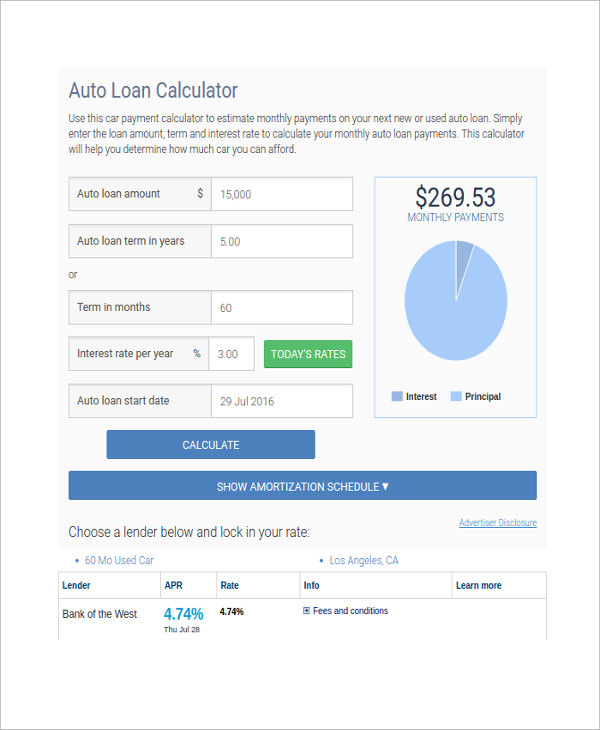
Buying a car is an exciting milestone, but navigating the world of car loans can often feel like a complex puzzle. From understanding interest rates to calculating monthly payments, the financial intricacies can be overwhelming. While many online calculators offer quick answers, they often lack the personalized control and depth needed for true financial planning.
This is where Microsoft Excel becomes your most powerful ally. Imagine having a personal financial dashboard that not only calculates your payments but also allows you to simulate "what-if" scenarios, track your principal reduction, and even plan for early repayment. This comprehensive guide will transform you into an Excel car loan wizard, empowering you to make informed decisions and take control of your automotive financing.
Master Your Car Loan with Excel: Your Ultimate Guide to Financial Empowerment
We’re not just going to scratch the surface; we’re diving deep. By the end of this article, you’ll understand why a custom Car Loan Excel spreadsheet is indispensable, how to build one from the ground up, and how to leverage it for long-term financial success. Get ready to turn confusing numbers into clear, actionable insights.
Why Excel is Your Secret Weapon for Car Loan Management
In today’s digital age, countless websites offer instant car loan calculators. You punch in a few numbers, and voilà, a monthly payment appears. So, why bother with Excel? The answer lies in control, customization, and comprehensive understanding.
Based on my experience in personal finance, relying solely on generic online calculators can leave you feeling disengaged from your financial commitments. They provide a snapshot, but rarely the full movie. Excel, on the other hand, puts you in the director’s chair.
With a well-crafted Car Loan Excel spreadsheet, you gain unparalleled transparency. You can see exactly how much of your payment goes towards interest versus principal each month. This level of detail isn’t just academic; it’s crucial for understanding the true cost of your loan and identifying opportunities to save money. It transforms a static number into a dynamic financial tool tailored specifically to your situation.
Demystifying Key Car Loan Terminology
Before we dive into the formulas and spreadsheet setup, it’s essential to understand the core terms associated with car loans. Knowing these definitions will make building your Excel model much clearer and more effective. Think of this as your financial glossary for automotive financing.
-
Principal: This is the initial amount of money you borrow to purchase the car. If your car costs $30,000 and you put down $5,000, your principal loan amount is $25,000. Excel will help you track how this principal decreases over time.
-
Interest Rate (APR – Annual Percentage Rate): This is the cost of borrowing money, expressed as a percentage of the principal. APR includes the interest rate plus any additional fees, giving you a more complete picture of the annual cost. A lower APR means less money paid in interest over the life of the loan.
-
Loan Term: This refers to the duration over which you agree to repay the loan, typically expressed in months (e.g., 36, 48, 60, or 72 months). A longer loan term usually means lower monthly payments but results in paying more total interest over time.
-
Monthly Payment: This is the fixed amount you pay back to the lender each month. It comprises a portion of the principal and a portion of the interest. Understanding how this is calculated is central to our Excel journey.
-
Down Payment: This is the upfront cash amount you pay towards the car’s purchase price. A larger down payment reduces the principal loan amount, which in turn lowers your monthly payments and the total interest paid over the loan term. It’s a powerful tool for reducing your overall financial burden.
-
Trade-in Value: If you’re trading in your old vehicle, its value can be applied towards the purchase of your new car, effectively acting like an additional down payment. This reduces the amount you need to finance.
-
Total Cost of Loan: This crucial figure represents the sum of all your monthly payments over the entire loan term, plus any upfront fees. Your Excel spreadsheet will allow you to calculate this accurately and see how it changes with different scenarios.
Building Your Car Loan Excel Spreadsheet: A Step-by-Step Guide
Now, let’s get hands-on and construct your personalized car loan calculator in Excel. This process is straightforward, and once set up, it will be an invaluable financial tool. We’ll start with basic inputs and then introduce powerful formulas.
Step 1: Setting Up Your Basic Data Input
Open a new Excel workbook. In the first few rows, we’ll create clearly labeled cells for our core loan parameters. This makes it easy to adjust variables and see their impact instantly.
- Cell A1: Type "Loan Amount (Principal)"
- Cell B1: Enter your initial loan amount (e.g., 25000)
- Cell A2: Type "Annual Interest Rate (APR)"
- Cell B2: Enter your annual interest rate as a decimal (e.g., 0.05 for 5%)
- Cell A3: Type "Loan Term in Months"
- Cell B3: Enter the total number of months for your loan (e.g., 60 for 5 years)
These are the foundational numbers that drive all your calculations. Make sure they are accurate from your loan agreement.
Step 2: Essential Excel Formulas for Car Loans
Excel offers several built-in financial functions that are perfect for car loan analysis. These functions simplify complex calculations into easy-to-use formulas.
A. Calculating Your Monthly Payment with PMT()
The PMT() function is arguably the most important one for car loans. It calculates the payment for a loan based on constant payments and a constant interest rate.
-
Syntax:
PMT(rate, nper, pv, , )rate: The interest rate per period. Remember, your annual rate needs to be converted to a monthly rate.nper: The total number of payments for the loan (loan term in months).pv: The present value, or the total amount that a series of future payments is worth now (the principal loan amount).: Optional. The future value, or a cash balance you want to attain after the last payment is made. For loans, this is usually 0.: Optional. When payments are due (0 for end of period, 1 for beginning of period). For most car loans, it’s 0.
-
Application: In Cell A5, type "Monthly Payment". In Cell B5, enter the formula:
=PMT(B2/12, B3, -B1)- We divide
B2(annual rate) by 12 to get the monthly rate. B3is the total number of monthly payments.-B1is the principal. We use a negative sign because the loan amount is a cash outflow from your perspective. Excel will then display the payment as a positive number.
You will instantly see your calculated monthly payment. This is your baseline.
- We divide
B. Dissecting Payments: IPMT() for Interest and PPMT() for Principal
Understanding how much interest versus principal you pay each month is crucial. Early in a loan, a larger portion goes to interest. As you progress, more goes to principal.
-
IPMT()(Interest Payment): Calculates the interest portion of a payment for a given period.- Syntax:
IPMT(rate, per, nper, pv, , )per: The period for which you want to find the interest (e.g., 1 for the first month, 2 for the second).
- Syntax:
-
PPMT()(Principal Payment): Calculates the principal portion of a payment for a given period.- Syntax:
PPMT(rate, per, nper, pv, , )per: The period for which you want to find the principal.
- Syntax:
These two functions are vital for building your amortization schedule.
C. Understanding Loan Duration: NPER()
While less common for initial setup, the NPER() function is powerful for "what-if" scenarios, especially when considering making extra payments. It calculates the number of periods for an investment based on periodic, constant payments and a constant interest rate.
-
Syntax:
NPER(rate, pmt, pv, , )rate: The interest rate per period.pmt: The payment made each period.pv: The present value (principal).
-
Application Example: If you wanted to know how many months it would take to pay off your loan if you paid $500 instead of your calculated payment, you could use
NPER(B2/12, -500, B1).
Step 3: Building an Amortization Schedule
An amortization schedule is a table detailing each payment made on a loan, breaking down how much goes to interest and how much to principal, and showing the remaining balance. This is where the magic of Excel truly shines.
Let’s set up the headers for your schedule, starting from Row 7 (or wherever you prefer below your input data):
- Cell A7: "Payment Number"
- Cell B7: "Beginning Balance"
- Cell C7: "Monthly Payment"
- Cell D7: "Interest Paid"
- Cell E7: "Principal Paid"
- Cell F7: "Ending Balance"
Now, let’s populate the first few rows with formulas:
-
Row 8 (Payment 1):
- A8:
1(for the first payment) - B8:
=$B$1(This links to your initial loan amount. Use$to make it an absolute reference so it doesn’t change when you drag the formula down.) - C8:
=$B$5(Links to your calculated monthly payment. Again, use$.) - D8 (Interest Paid):
=IPMT($B$2/12, A8, $B$3, -$B$1)- Note the
$for absolute references for rate, nper, and pv.A8is relative because the period changes each month.
- Note the
- E8 (Principal Paid):
=PPMT($B$2/12, A8, $B$3, -$B$1) - F8 (Ending Balance):
=B8+D8+E8(This adds the beginning balance, interest paid, and principal paid. Since IPMT and PPMT return negative values, adding them effectively subtracts the payment from the balance).
- A8:
-
Row 9 (Payment 2):
- A9:
=A8+1(This automatically increments the payment number.) - B9:
=F8(The ending balance of the previous month becomes the beginning balance of the current month.) - C9:
=$B$5 - D9 (Interest Paid):
=IPMT($B$2/12, A9, $B$3, -$B$1) - E9 (Principal Paid):
=PPMT($B$2/12, A9, $B$3, -$B$1) - F9 (Ending Balance):
=B9+D9+E9
- A9:
Pro tips from us: Always double-check your initial formulas, especially the absolute references ($). If you drag a formula down and get unexpected results, it’s often due to a missing or incorrectly placed dollar sign. Also, ensure your interest rate is always divided by 12 for monthly calculations.
Now, select Row 9 (cells A9 to F9) and drag the fill handle (the small square at the bottom-right of cell F9) down for the entire loan term (e.g., 60 rows for a 60-month loan). You will have a complete, dynamic amortization schedule! The final ending balance in the last row should be very close to zero, accounting for minor rounding differences.
Beyond Basic Calculations: Advanced Excel Strategies for Car Loans
Your Excel spreadsheet isn’t just a static calculator; it’s a dynamic financial modeling tool. Once you have the basic amortization schedule, you can unlock its full potential with advanced strategies. This is where you truly start to gain financial foresight.
A. "What-If" Scenarios: Predicting Your Financial Future
One of the most powerful features of Excel is its ability to instantly show you the impact of changing variables. This is invaluable for car loan planning.
-
Changing Your Down Payment: Go back to Cell B1 (Loan Amount). If you initially planned a $5,000 down payment, what if you could put down $10,000? Simply change
B1from $25,000 to $20,000, and watch how your monthly payment (B5) and the entire amortization schedule instantly update. You’ll see the total interest paid decrease significantly. -
Adjusting the Loan Term: Want to see the impact of a shorter loan? Change
B3(Loan Term in Months) from 60 to 48. Your monthly payment will increase, but the total interest paid over the loan’s life will dramatically decrease. This visual feedback helps you weigh the trade-offs between lower monthly payments and higher overall costs. -
Impact of Different Interest Rates: When shopping for a car loan, lenders will offer varying APRs. Use your Excel sheet to compare. Change
B2(Annual Interest Rate) to simulate rates from different lenders. This will immediately show you how much you could save or spend based on even a small percentage point difference. It’s a powerful negotiation tool. -
Making Extra Payments: This is where Excel truly shines for proactive financial management. Add a column next to "Monthly Payment" called "Extra Payment" and another called "Total Payment." In your "Total Payment" column, sum your monthly payment and your extra payment. Then, instead of referencing
=$B$5for yourCcolumn (Monthly Payment in the amortization schedule), reference your "Total Payment" column. This will show you how much faster you pay down the principal and reduce total interest. You can even use theNPER()function, as discussed earlier, to calculate exactly how many months you shave off.
B. Integrating Other Car Ownership Costs: Total Cost of Ownership
A car loan is just one part of owning a vehicle. To get a holistic financial picture, your Excel spreadsheet can be expanded to include other significant costs. This helps you understand the true financial burden of your chosen vehicle.
Create a separate tab in your workbook called "Ownership Costs." Here, you can track and estimate:
- Insurance Premiums: Monthly or annual cost.
- Fuel Expenses: Estimate based on mileage and current gas prices.
- Maintenance & Repairs: Allocate a monthly budget for routine service and unexpected repairs.
- Registration & Licensing Fees: Annual costs.
- Depreciation: While not a cash outflow, it’s a significant financial aspect. You can estimate this as a percentage of the car’s value over time.
By summing these costs alongside your car loan payment, you create a "Total Cost of Ownership" dashboard. This comprehensive view can reveal if a seemingly affordable car payment is actually part of a much larger financial commitment. For a deeper dive into overall car ownership costs, check out our article on .
C. Refinancing Analysis: Is a Better Deal Possible?
Life circumstances and interest rates change. Your Excel sheet can help you analyze if refinancing your car loan makes financial sense.
Create a copy of your current amortization schedule tab. Label it "Refinance Scenario."
- Input New Loan Terms: In your input section, adjust the "Annual Interest Rate" (B2) to the new, lower rate you’ve been offered. Adjust the "Loan Term in Months" (B3) to the new term.
- New Principal: Your "Loan Amount (Principal)" (B1) for the refinance scenario will be your current outstanding balance on your original loan. You can find this from your existing amortization schedule.
- Compare: Now, you can directly compare the monthly payments, total interest paid, and total cost of the original loan versus the refinanced loan. This side-by-side comparison makes it clear whether refinancing will genuinely save you money.
This analysis is particularly useful if your credit score has improved since you first took out the loan, or if market interest rates have dropped significantly.
Common Mistakes to Avoid When Using Excel for Car Loans
Even with the best intentions, it’s easy to make small errors that can significantly skew your car loan calculations in Excel. Being aware of these common pitfalls will save you time and prevent financial miscalculations.
-
Incorrect Interest Rate Conversion: This is perhaps the most frequent mistake. Remember, the
PMT(),IPMT(), andPPMT()functions require a periodic interest rate. If your loan has an annual interest rate (APR) of 5%, you must divide it by 12 for monthly payments. So, 0.05 becomes 0.05/12. Forgetting this step will lead to drastically inaccurate monthly payments and total interest calculations. -
Forgetting to Account for Fees: While your monthly payment calculation typically covers principal and interest, car loans often come with various fees, such as origination fees, documentation fees, or title fees. These are usually paid upfront or rolled into the loan principal. Your Excel model should either include these in the initial loan amount or have a separate line item to ensure you capture the true total cost.
-
Not Using Absolute References (
$): When copying formulas down an amortization schedule, if you don’t use absolute references ($B$1,$B$2,$B$3,$B$5) for your initial loan parameters, Excel will try to adjust those cell references as you drag. This results in incorrect calculations for subsequent payments. Always double-check your$signs! -
Over-Complicating Initially: While Excel is powerful, start simple. Get the basic amortization schedule working perfectly before adding extra features like graphs, conditional formatting, or complex "what-if" scenarios. A solid foundation is key. Trying to do too much too soon can lead to frustration and errors.
-
Ignoring the "Future Value" and "Type" Arguments: While often zero for car loans, understanding the optional
andarguments in functions likePMT()is important. If you were, for example, calculating a savings goal where you wanted a specific future balance,fvwould be crucial. For car loans, stick with 0 forfvand 0 fortype(payments at end of period) unless your loan specifically states otherwise.
Resources and Next Steps
You’ve now built a robust Car Loan Excel spreadsheet, a powerful tool for managing your automotive finances. But the journey doesn’t have to end here.
- Explore Excel Templates: Microsoft and various financial blogs offer pre-built loan amortization templates. While building your own provides invaluable understanding, these templates can be a great starting point or offer additional features you might consider incorporating.
- Consult a Financial Advisor: For personalized advice on car loans, overall budgeting, or complex financial situations, consider speaking with a qualified financial advisor. They can provide tailored guidance beyond what any spreadsheet can offer. A trusted resource for finding certified professionals is the CFP Board website, which lists Certified Financial Planners. .
- Continuous Learning: Financial literacy is an ongoing process. Keep exploring ways to optimize your budget, save money, and make smart financial decisions. Your Excel skills can be applied to many other areas of personal finance, from mortgage planning to retirement savings.
- Consider Your Next Vehicle Purchase: Armed with your Excel expertise, you’ll be much better prepared for future car purchases. Considering buying a used car? Our guide on can help you prepare for the inspection and negotiation process.
Conclusion: Drive Towards Financial Confidence
Mastering your car loan with Excel is more than just crunching numbers; it’s about gaining financial confidence and control. By understanding the mechanics of your loan, visualizing its repayment, and modeling various scenarios, you transform from a passive borrower into an active financial manager.
Your personalized Car Loan Excel spreadsheet is a dynamic asset that empowers you to make smarter decisions, save money on interest, and accelerate your path to debt freedom. So, open up Excel, put these steps into action, and take the wheel of your financial future. The road to financial empowerment starts now.